
HOW IT WORKS
From booking to signed report, in days.
Four steps. The operator and on-site inspector work as they do now. The engineer or surveyor joins from the office, and the report is drafted from what they found.
TIMELINE
Weeks become days. Where the time goes today, and where it goes with Skyhost.
Today
Coordinate the booking
Engineer, operator, facade inspector, building management.
Engineer travels to site
Half a day per building.
Flight and on-site assessment
Judged on a controller screen.
Photo handover
Drive or download link, sorted by hand.
Review and write the report
Typed from scratch.
Several weeks
With Skyhost
Schedule the inspection
One booking, everyone invited from it.
Live flight, engineer in the office
Directs the operator and sees defects live. No travel.
Photos in one place
Uploaded into the inspection project.
Review and draft the report
Findings raised, report drafted, engineer signs.
Days
01SCHEDULE · BEFORE THE DAY
The inspection is set up before anyone travels.
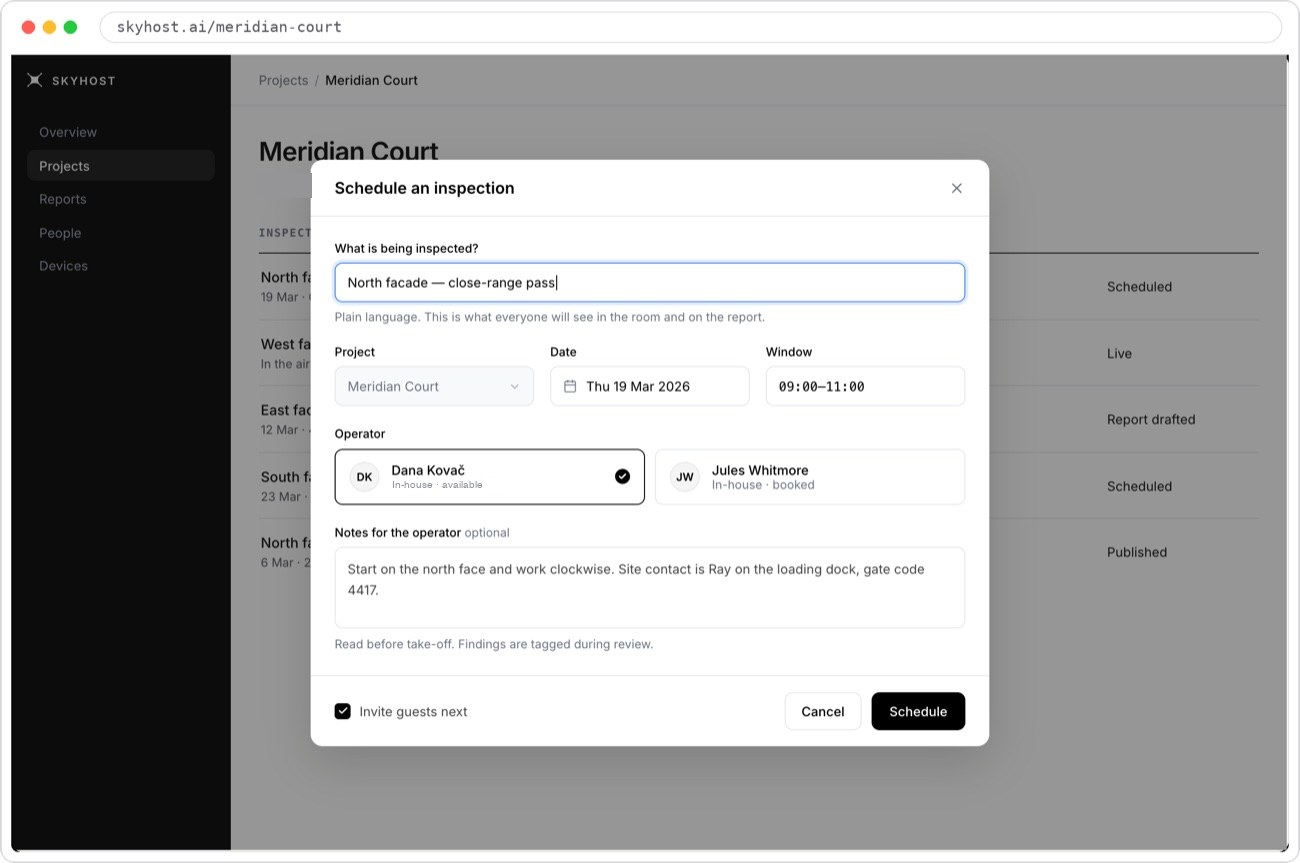
Scope in plain words.
What everyone sees in the session and on the report.
Date and window.
Agreed once, for everyone.
Operator.
Your operator, with availability shown.
Guests invited next.
One link each, from the booking.
One booking.
Date, window, site and elevations, agreed once.
Everyone invited from it.
Engineer, facade inspector, operator, owner's representative. One link each.
Coverage agreed in advance.
What must be captured on each elevation, listed before the flight and checked during it.
02LIVE · 2 HOURS
The engineer directs the operator live.
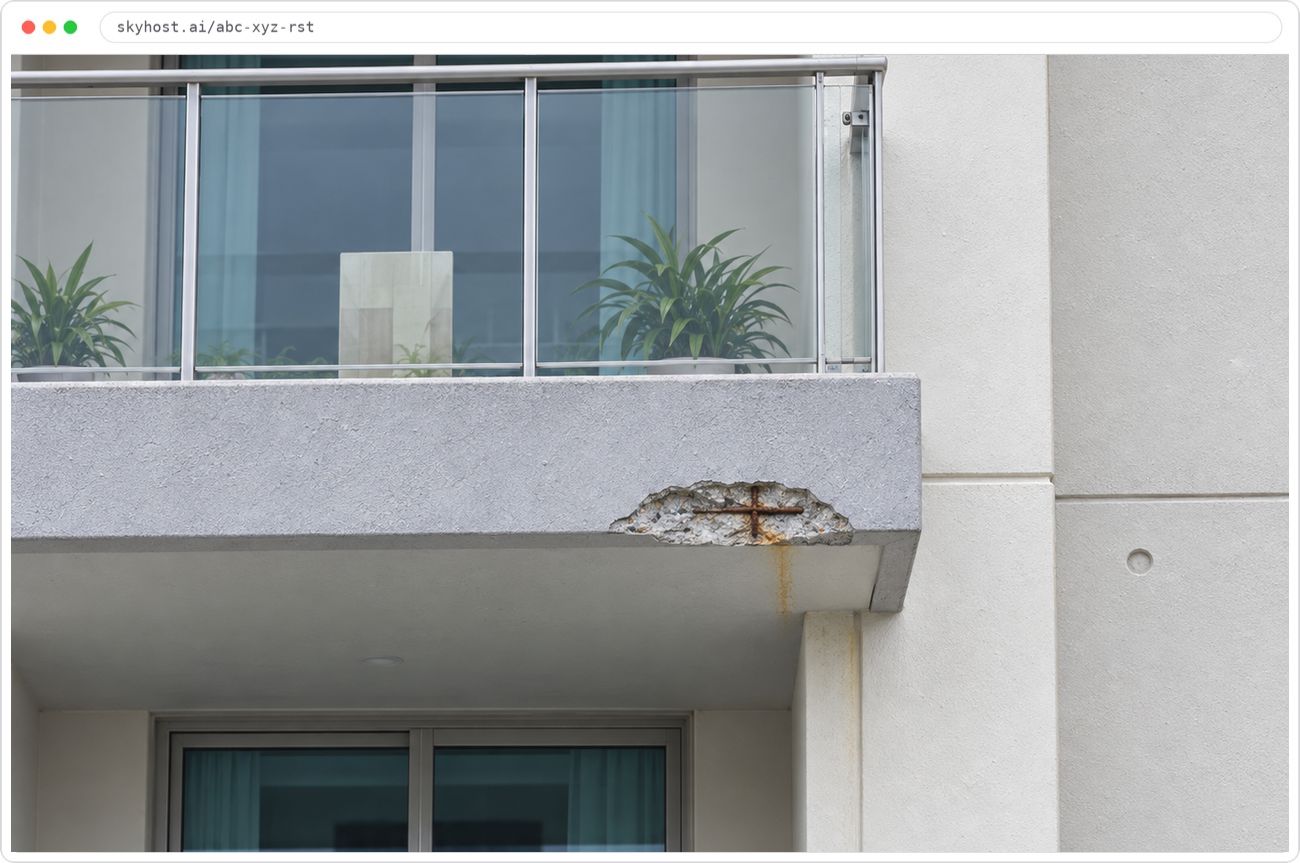
Live video from site.
The operator's drone at close range, as it flies.
Everyone in one session.
Competent Person, facade inspector, owner's representative, operator.
Two-way audio.
"Go back to that balcony." The operator hears it straight away.
"Go back to that spot."
Two-way audio with the operator for the whole flight. Gaps are caught while the drone is still up, not re-flown later.
Defects seen live.
Each defect is seen and captured during the flight, not found in the footage afterwards.
Everyone who needs to be there is there.
The facade inspector on site and the owner's representative watching, in the same session.
03REVIEW · SAME OR NEXT DAY
The engineer reviews each image on a full-size screen and raises the findings.
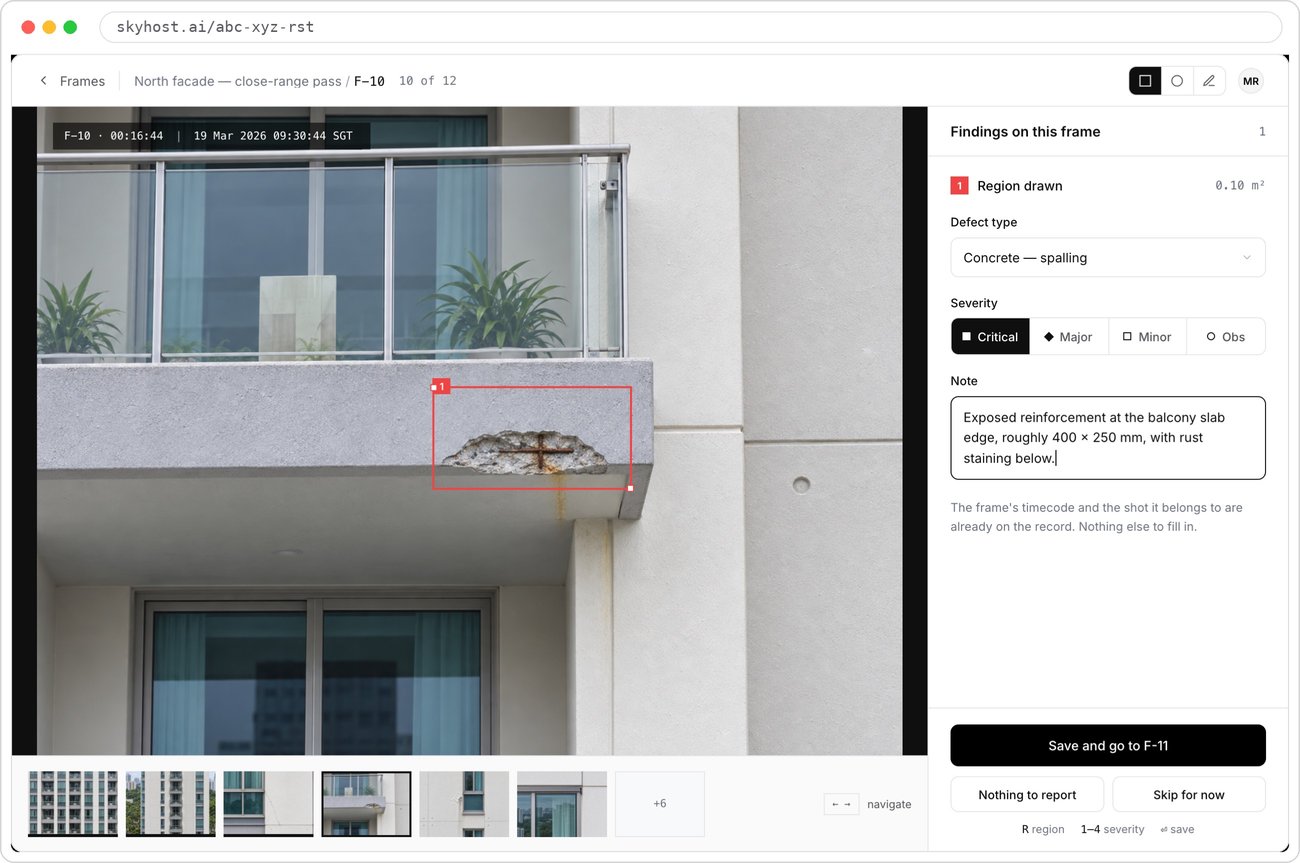
Region drawn on the frame.
Area calculated in m².
Defect type.
From your firm's defect list.
Severity.
Critical, major, minor or observation.
Already on the record.
Frame ID, pass and timecode, filled in for you.
Judged at a desk, not in the sun.
The image the engineer saw in the air, at full resolution, on a full-size screen.
Defect, severity, region, note.
Four fields per finding. Severity is critical, major, minor or observation.
Every review is recorded.
Who reviewed each image, and when.
04REPORT · 1–2 DAYS
The report is drafted from the findings.
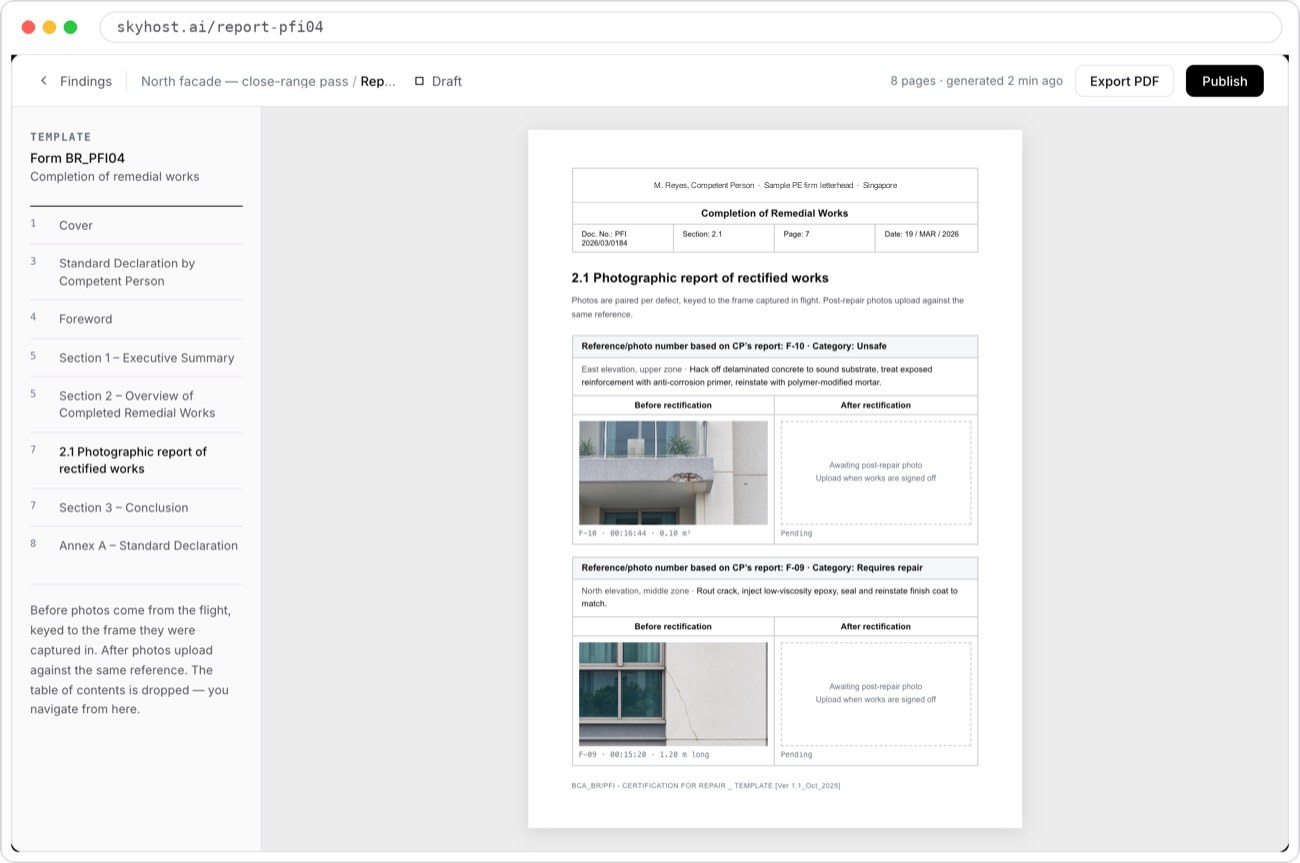
Your template.
Shown here: BCA Form BR_PFI04.
Before photos from the flight.
Keyed to the frame they came from.
Export or publish.
PDF, or published to the project.
Cover, summary, findings, flight record, images.
Amend a finding and the draft changes with it.
The engineer signs.
Every classification and the declaration are made by the Competent Person or attending surveyor.
Your template.
BCA forms for facades. Your class report format for ships.
ROLES
Who does what, at each step. The duties don't move. Only the engineer's location does.
| Item | Engineer (CP) | Operator | Facade inspector | Owner's rep | Skyhost |
|---|---|---|---|---|---|
| SCHEDULE | Books, sets coverage | Confirms the window | Invited | Invited | Holds the booking, sends links |
| LIVE | Directs from the office, observes defects | Flies and captures | On site, under the CP's supervision | Watches, asks questions | Carries video and audio |
| REVIEW | Raises every finding | Uploads full-res photos | Supports the review | · | Keeps each photo against its frame and pass |
| REPORT | Checks, declares, signs, publishes | · | · | Receives the report | Drafts from the findings; never signs |
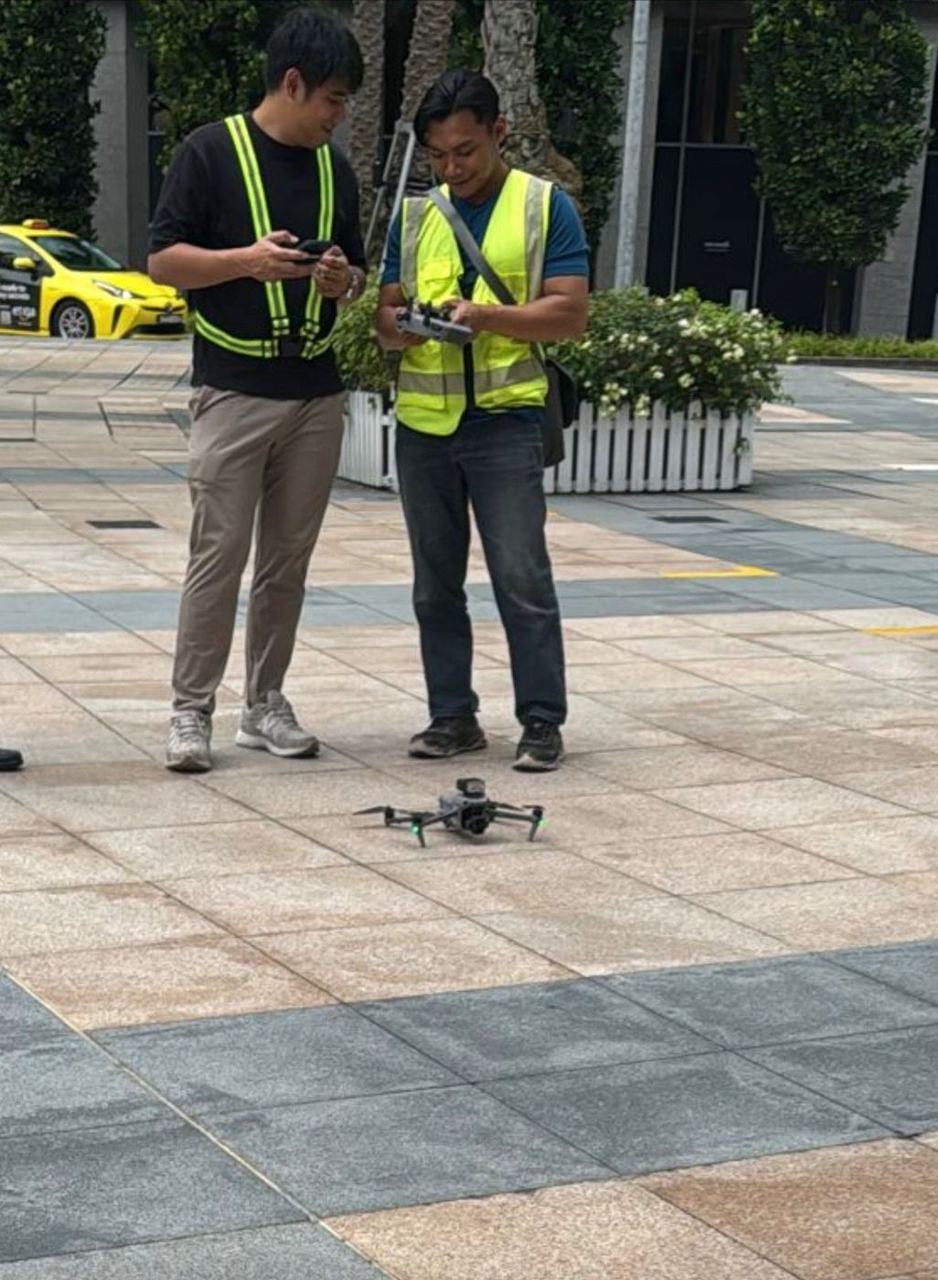
OPERATORS
Your operator flies.
In-house operator.
Your accredited operator flies your drones under your permits and insurance, and streams to the session from the controller app.
EQUIPMENT
It works with the equipment your operator already has. No new hardware to buy, no private network to set up.
- DRONE OR CAMERA
- A DJI drone and its controller, a camera into a laptop over HDMI, or a phone or smart glasses: anything that can send an RTMP stream
- CONNECTION
- A 4G or 5G SIM, or Starlink, at the site
- REMOTE PARTICIPANTS
- A laptop, tablet or phone with a current browser
- YOUR TEAM
- Accounts for the people who review and publish
SIDE BY SIDE
The same inspection, run differently. Same duty, same judgement, same close-range inspection on site.
| Item | Today | With Skyhost |
|---|---|---|
| BOOKING | Phone, email, WhatsApp | One scheduled inspection, everyone invited from it |
| ENGINEER'S LOCATION | On site beside the operator | In the office, joined to the live session |
| ASSESSMENT SCREEN | Controller screen, outdoors | Full-size monitor, full-resolution image |
| PHOTO HANDOVER | Hard drive or download link | Uploaded into the inspection, matched to the frame |
| REPORT | Typed from scratch | Drafted from the findings, signed by the engineer |
| FLIGHT TO SUBMISSION | Several weeks | Days |
| COST PER INSPECTION | Engineer's travel and waiting time billed in | Travel time removed |
GETTING STARTED
How firms start. One demo, one real inspection, then your programme.
Demo
We walk through a sample facade or ship inspection, booking to report.
First inspection
Run one real inspection on Skyhost with your operator and your template.
Rollout
Templates, team accounts and projects set up for the buildings or vessels you inspect.
Practical questions
Who controls the drone?
The operator, always. Remote participants direct by voice.
What if the connection drops?
The operator keeps flying and capturing as normal. Participants rejoin from the same link, and the full-resolution photos are uploaded after the flight, so the review never depends on the live feed.
Can more than one engineer join?
Yes. Invite anyone who should see the inspection; each person gets a link.
Does the facade inspector still need to be on site?
Yes. Skyhost doesn't change who must attend. It lets the CP supervise without travelling.
How long does it take to set up an operator?
Minutes, for a supported drone and controller. We onboard each operator once.
What do we get at the end?
A report in your template as a PDF, with the findings, photos and people involved kept on the project record.